Yes, iPads are good for seniors because they are simple, accessible, portable, and useful for staying connected.
Are iPads good for seniors? In many cases, yes. A well-set-up iPad can help an older adult video chat with family, read the news, view photos, manage appointments, enjoy games, and access health information. The large touch screen and built-in accessibility tools make the iPad easier to use than many smartphones.
Still, the best iPad for a senior depends on eyesight, hand strength, hearing, memory, technology skills, and budget. This guide explains the main benefits, possible problems, best models, safety settings, and simple setup tips so you can make a confident choice.

Why iPads Are Good for Seniors
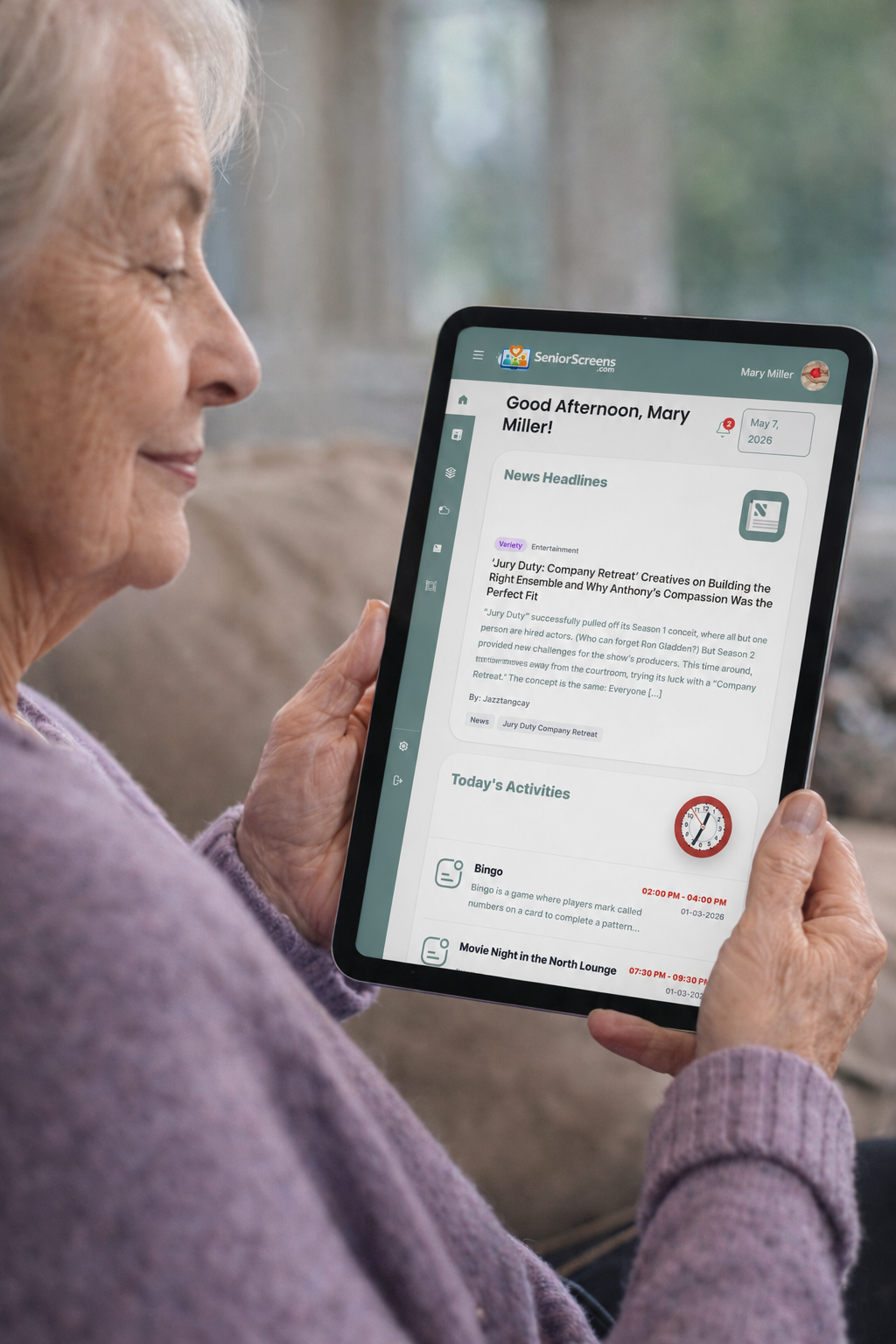
iPads are good for seniors because they offer a clear screen without the small buttons found on most phones. Users can tap large icons, enlarge text, and adjust the screen to suit their needs.
The iPad also works well for many daily tasks. It can become a digital photo album, reading tool, phone, television, game device, and note pad in one slim product.
One lesson I have learned while helping older adults with tablets is that simplicity matters more than advanced features. A senior may not need the fastest processor or the most expensive model. They need a device that feels calm, clear, and easy to control.
Key benefits include:
• Large display for reading and viewing photos
• Simple touch controls
• Video calls through FaceTime and other apps
• Easy access to email and online services
• Adjustable text size and screen contrast
• Helpful voice features
• Long battery life for normal daily use
• A lighter design than most laptops
An iPad can also reduce the need to remember several passwords or learn many devices. With the right apps on the home screen, common tasks can be only one tap away.

Main Benefits of an iPad for Older Adults
Staying connected with family
Many seniors use an iPad to make video calls with children, grandchildren, friends, and care providers. FaceTime is built into Apple devices, while apps such as Zoom, Google Meet, and WhatsApp can connect with people who use other devices.
The larger screen makes faces easier to see than on a phone. It also helps users notice facial expressions and read lips during a call.
A family member can make the first call part of the setup process. Saving important contacts as Favorites can make future calls less stressful.
Reading and entertainment
An iPad can display books, newspapers, magazines, recipes, and websites. Users can increase the font size and change the brightness for more comfortable reading.
Older adults can also stream movies, listen to music, follow podcasts, and watch exercise videos. This makes the iPad useful at home, in a hospital room, or while traveling.
For someone with limited mobility, an iPad may bring many forms of entertainment within easy reach. A stand or case with a built-in support can make long sessions more comfortable.
Health and daily organization
An iPad can help seniors manage daily routines. Calendar apps can show appointments, birthdays, medication reminders, and family events.
Health apps may help users track steps, sleep, heart rate data, or other information from connected devices. However, health apps are not a replacement for a doctor. Medical decisions should always be based on advice from a qualified health professional.
A large screen can also help seniors read patient portals, fill out forms, and attend telehealth visits. A caregiver may need to help with passwords, permissions, and app setup.
Mental activity and hobbies
Games such as puzzles, card games, crosswords, and word searches can provide enjoyable mental activity. Seniors can also use drawing apps, genealogy tools, language apps, cooking videos, and photo-editing tools.
These activities are not a cure for memory loss. However, they can support fun, routine, and social contact. The best activity is one the person enjoys and can use without feeling frustrated.
iPad Accessibility Features for Seniors
Apple includes many accessibility settings that can make an iPad easier to use. The exact options can change with iPadOS updates, but the main tools are widely available.
Larger text and display controls
The Display & Brightness menu lets users change text size and brightness. Accessibility settings can make text even larger in apps that support Dynamic Type.
Display Zoom can enlarge items across the screen. Bold Text may make letters easier to see. These changes can help users with reduced vision.
VoiceOver and spoken content
VoiceOver reads items on the screen aloud. It is designed for people with serious vision loss, but it may require practice because it changes how users control the iPad.
Spoken Content can read selected text aloud without turning on the full VoiceOver system. This may help seniors who find small text tiring to read.
Magnifier and zoom
The iPad camera can work as a magnifying glass through the Magnifier feature. This can help users read a menu, medicine label, or printed letter.
The Zoom feature enlarges part of the screen. It is useful when normal text changes are not enough.
Hearing support
The iPad supports features such as subtitles, closed captions, visual alerts, and compatible hearing devices. Users can adjust audio balance and mono audio when needed.
For hearing loss, headphones or hearing devices should be used safely. Loud sound for long periods can damage hearing.
Touch and voice controls
Some seniors have arthritis, tremors, or reduced hand strength. Touch settings can adjust how the iPad responds to taps, swipes, and holds.
Siri can help users send messages, set reminders, make calls, and ask questions by voice. Voice Control can provide broader hands-free control, though it may take time to learn.

Possible Disadvantages of iPads for Seniors
iPads are good for seniors in many situations, but they are not perfect for everyone. A careful decision should include the possible drawbacks.
The learning curve
Touch screens can feel strange to someone who has only used a landline phone or a traditional computer. Swiping, tapping, app switching, and onscreen keyboards may take practice.
A senior may also worry about making a mistake. Reassure them that most settings can be changed and that many actions can be undone.
Cost
An iPad costs more than some basic Android tablets. The total cost may also include:
• A protective case
• A screen protector
• A keyboard
• A stylus
• Cellular service
• Paid apps or subscriptions
The least expensive compatible iPad may be enough for email, video calls, reading, and simple games. There is no need to buy extra accessories unless they solve a real problem.
Touch-screen limits
Some people with arthritis or tremors may struggle with small buttons. Others may have trouble with swipe gestures or holding the device for a long time.
A sturdy case, tablet stand, stylus, or external keyboard can help. Try these tools before assuming that the iPad itself is unsuitable.
Internet dependence
Many iPad features need Wi-Fi or cellular data. Without an internet connection, a user may not be able to make video calls, browse the web, or use cloud services.
Set up the iPad near a reliable router. If the senior travels often, consider a cellular model or a phone hotspot.
Privacy and scams
Seniors can be targets for fake messages, tech-support scams, fraudulent websites, and unwanted subscription charges. The iPad has strong security tools, but safe habits still matter.
Teach the user not to share passwords or verification codes. Legitimate companies do not usually ask for these details through unexpected calls or messages.
Which iPad Is Best for Seniors?
The best iPad for a senior is the model that offers a comfortable screen, enough storage, current software support, and a price that fits the budget.
Standard iPad
The standard iPad is often the best starting point. It usually offers a large screen, good battery life, a front camera, and enough performance for video calls, reading, browsing, and entertainment.
For most seniors, this model provides the best balance of features and cost. Check the current model before buying because screen size, accessories, and processor details change over time.
iPad mini
The iPad mini is smaller and lighter. It can suit a senior who wants to hold the device with one hand or carry it around the house.
Its smaller screen may not be ideal for someone with poor vision. A senior should try the display in person if possible.
iPad Air
The iPad Air offers more power and often supports advanced accessories. It may be a good choice for a senior who enjoys creative work, multitasking, or wants a device for many years.
For basic use, its extra performance may not be necessary. It can cost more than the average user needs to spend.
iPad Pro
The iPad Pro is powerful and has a high-quality display. It is useful for demanding creative work, but it is usually excessive for email, video calls, reading, and simple games.
A family should not buy the Pro model only because it is the most expensive. More power does not always mean a better experience for an older adult.

How to Set Up an iPad for a Senior
A thoughtful setup can make the difference between an iPad that gets used and one that stays in a drawer.
1. Update the iPad
Install the latest compatible version of iPadOS. Software updates can improve security, fix problems, and add useful features.
If the iPad is too old to receive current updates, avoid using it for sensitive tasks such as banking.
2. Choose a clear home screen
Keep the first screen simple. Place the most important apps in easy-to-see locations.
Useful first-screen apps may include:
• FaceTime
• Messages
• Phone or contact apps
• Calendar
• Photos
• Safari
• Weather
• Maps
Remove or move apps that create confusion. The App Library can keep less-used apps out of the way.
3. Adjust the display
Increase text size, set a comfortable brightness level, and test the contrast. Turn on Dark Mode or other display options only if they feel easier to read.
Avoid making every element extremely large. If icons become too large, fewer apps may fit on the screen.
4. Set up contacts
Add family members, doctors, caregivers, and emergency contacts. Use clear names and photos when helpful.
Teach the senior how to call a contact. Practice this step several times until it feels natural.
5. Add a protective case
Choose a case with a raised edge, good grip, and a stand. A bright color may make the iPad easier to find.
A case is especially important for seniors who carry the device from room to room.
6. Explain passwords simply
Use a password manager when appropriate. Write basic instructions in a secure place, but do not leave passwords beside the iPad.
Set up Touch ID or Face ID if the user can use it comfortably. Keep the device passcode private.
7. Practice common tasks
Do not teach every feature in one session. Start with three tasks:
-
Make a video call.
-
Open and read an email.
-
Find and view photos.
Add more skills later. Short practice sessions work better than one long lesson.
Practical Tips to Make an iPad Easier to Use
Think of the iPad as a home with several rooms. The home screen is the front door, important apps are the main rooms, and rarely used apps can stay in storage.
Use these practical tips:
• Keep the iPad in one regular location.
• Charge it overnight or at a set time.
• Use a stand to reduce hand and neck strain.
• Turn on larger text before installing many apps.
• Use a simple wallpaper with strong contrast.
• Enable automatic software updates when practical.
• Review app permissions before allowing access.
• Turn off unnecessary notifications.
• Add emergency information to the Medical ID area on a paired iPhone if the family uses one.
• Check subscriptions every few months.
In hands-on setup sessions, I have found that the biggest mistake is adding too many apps too soon. A clean home screen feels like a clear kitchen counter. It invites use instead of creating stress.
Another common mistake is placing the iPad too far from a charger. A device that is always out of power will not become part of a daily routine.
iPad Safety and Privacy for Seniors
Online safety deserves as much attention as ease of use. The iPad can be secure, but the user still needs simple rules.
Teach these habits:
• Do not click unexpected links in messages.
• Do not give a caller remote access to the iPad unless a trusted person arranged it.
• Never share an Apple Account password or verification code.
• Download apps only from the official App Store.
• Check the developer name before installing an app.
• Use unique passwords for important accounts.
• Turn on two-factor authentication when possible.
• Keep banking and medical apps protected with a passcode.
• Ask a trusted family member before sending money online.
Scammers often create a sense of panic. They may claim that an account is locked or that a virus has infected the device. The safest response is to stop, close the message, and contact the company through its official website or phone number.
Family members can also help by setting up trusted recovery contacts and reviewing privacy settings. This support should protect the senior’s independence, not remove it.
When a Different Device May Be Better
An iPad may not be the best choice for every senior. A simple Android tablet may cost less or work better with a family member’s devices.
A laptop may be better for long documents, detailed spreadsheets, or websites that work poorly on tablets. A basic phone may be better for someone who only needs calls and texts.
A senior with severe vision loss may need a device designed around specialized accessibility tools. Someone with memory problems may need support from a caregiver or a simplified communication device.
The right question is not only, “Are iPads good for seniors?” It is also, “What does this person want to do each day?” Match the device to real needs, comfort, and support.
Are iPads Good for Seniors?
Is an iPad easy for an elderly person to use?
Yes, many older adults find an iPad easy to use after a short practice period. Large icons, touch controls, voice features, and adjustable text can make common tasks simple.
What size iPad is best for seniors?
A larger iPad is often better for reading, video calls, and viewing photos. The iPad mini may be better for someone who values light weight and portability, but its smaller display may be harder to see.
Can seniors use an iPad without an Apple device?
Yes. An iPad can work with many non-Apple devices through email, web apps, Zoom, Google Meet, and other services. Some Apple-only features may work best when family members also use Apple products.
Is an iPad better than a tablet for seniors?
An iPad is a type of tablet, so the better choice depends on the person’s needs and budget. iPads often offer a polished interface and strong accessibility tools, while some Android tablets cost less.
Can an iPad help seniors with dementia?
An iPad may support safe activities such as viewing photos, listening to music, or making video calls. It should be set up with supervision when needed, because confusing apps, purchases, and online scams can create risks.
Does an iPad need Wi-Fi?
Most iPad functions work best with Wi-Fi, including video calls, streaming, and web browsing. Some models support cellular data, which can provide internet access away from home through a mobile plan.
How can I stop an older adult from accidentally buying apps?
Turn on purchase restrictions and require a password for purchases. A family member can also review subscriptions and remove payment details when appropriate.
Conclusion
So, are iPads good for seniors? For many older adults, they are an excellent choice for communication, reading, entertainment, health tasks, and daily organization. A large screen, simple interface, accessibility settings, and strong security make the iPad useful at many stages of life.
The best results come from choosing the right size, adding a protective case, simplifying the home screen, and providing patient practice. Start with a few important tasks instead of teaching every feature at once.
If you are choosing an iPad for yourself or a family member, test the screen, check the grip, and set up accessibility tools before making a final decision. Explore trusted device guides, share your experience, or leave a comment about which iPad features help your family most.

Michael Reynolds is a senior contributor at RetirementGazette.com, where he focuses on helping readers navigate the journey toward a secure and fulfilling retirement. With over a decade of experience in personal finance, retirement planning, and lifestyle writing, Michael combines practical strategies with easy-to-understand guidance tailored for both pre-retirees and those already enjoying their golden years.