Reading can be a calm friend in retirement. It fits your pace. It feeds your mind. It can lift your mood. Today, digital tools make reading simple and kind to the eyes. You get big text. You get soft light. You can listen to books when your hands are busy. This guide shows the best digital reading tools for seniors. It also shows how to build a strong reading habit that lasts. You will find clear steps, safe tips, and smart ways to save money. You will feel ready to read more, every day, with ease.

Why Digital Reading Matters in Retirement
Digital reading gives you choice, comfort, and control. You can adjust text size. You can change fonts. You can listen when you want to rest your eyes. You can carry a whole library in one small device. These tools fit many needs and budgets. They support a life of learning, joy, and peace.

- Brain health: Reading helps focus, memory, and mood. It keeps your mind active and strong.
- Ease: Tap to borrow a book. Tap to change text. No need to lift heavy hardbacks.
- Space and order: E-books clear shelves and cut clutter.
- Social ties: Join a book club. Share notes. Swap tips with friends.
- Flexible routine: Read in bed, at the table, or on a porch swing. Listen on a walk.
Key Features Seniors Should Look For
The best device is the one that feels good to use each day. Look for large font options. Look for clear screens and warm light. Seek strong battery life. Check that the store or library app is easy to use. Think about weight and grip. Make sure support is close at hand.
Screen and Text Comfort
Your eyes work hard. Give them help. E-ink screens look like paper. They shine less light at you. They reduce glare. Tablets give rich color and bright light. Both can work well. The key is control.
- Adjustable font size: Aim for fast, large jumps, not tiny steps.
- Friendly fonts: Try Bookerly, Georgia, Atkinson Hyperlegible, or OpenDyslexic.
- Line spacing and margins: Wider spacing can ease strain.
- Themes: Light, dark, and sepia can match the time of day.
- Warm light: Cuts blue light at night. Helps you wind down.
- High contrast mode: Sharp edges help low vision.
Audio and Voice Support
Voice can carry the story when eyes feel tired. Many apps can read text out loud. Audiobooks are also rich and smooth.
- Text-to-speech (TTS): Let the device read most e-books and web pages.
- Audiobooks: Hear actors bring the words to life.
- Speed control: Slow or speed up the voice to match your pace.
- Sleep timer: Drift off without losing your place.
- Voice control: Ask your device to play, pause, or search.
Controls and Ease of Use
Simple beats fancy. You want big taps. Clear steps. Easy menus. Strong tools to reduce clutter.

- One-tap open: Keep your current book on the home screen.
- Big buttons: Use larger touch targets and page turn buttons if you can.
- Bookmarks: Return to the spot you love, fast.
- Search: Find a word or part of a story with ease.
- Cloud sync: Your place stays the same across phone, tablet, and e-reader.
Accessibility for Low Vision or Dyslexia
Good tools reduce stress and help you enjoy the text. Test features before you buy. The right setup can make a huge difference.
- Screen magnifier: Zoom on any part of the screen in a smooth way.
- Read aloud: TTS with a clear voice and strong contrast aids focus.
- Dyslexia support: Use fonts with unique letter shapes like OpenDyslexic or Atkinson Hyperlegible.
- Focus mode: Hide toolbars and stop pop-ups.
- Color filter: Fine-tune colors for comfort.
- For guidance on vision and aging, see the American Foundation for the Blind at https://www.afb.org.
Budget and Ownership
Plan based on what and how you read. Check if you want to buy, borrow, or both. Some stores give low prices but lock your books in. Libraries give you free access.
- Borrow free with a library card using Libby by OverDrive: https://www.overdrive.com/apps/libby
- Buy and keep: Kindle or Kobo stores are easy to use.
- Mix and match: Use both a library app and a store app.
- Watch deals: AARP and local shops often post sales and tips at https://www.aarp.org.
Best E-Readers for Seniors in 2026
E-readers are light. They last for weeks on a single charge. They feel calm to the eyes. Many have warm light and big font support. They are best for book lovers who read a lot of text.
Kindle Paperwhite (11th generation and newer)
The Kindle Paperwhite has a crisp e-ink screen. It has warm light. It is water-safe for bath or poolside use. It works with the large Kindle store and library loans.
- Pros:
- Large text and clean fonts
- Warm light and dark mode
- Fast page turns and long battery life
- Works with Libby for library loans
- Cons:
- Locked to the Amazon store for most books
- Built-in text-to-speech is limited on the device
Tips:
- Choose the 16 GB model if you like to carry many books.
- Turn on Bold Weight in Fonts for darker text.
- Link your library in the Kindle app to send Libby loans to your Kindle.
Kobo Clara 2E and Kobo Libra 2
Kobo shines for font choice and openness. It reads ePub files with ease. It has a sweet warm light. It also has OverDrive built in, so you can borrow from the library on the device.
- Pros:
- Reads many formats, like ePub
- Great font and spacing controls
- Direct library search with OverDrive
- Light and easy to hold
- Cons:
- Store is smaller than Amazon in some areas
- Audiobook support is basic
Tip:
- Try the Atkinson Hyperlegible font for clear shape edges.
Onyx Boox Note Air Series and Page
Onyx Boox is a power tool. It runs Android. You can install Kindle, Kobo, Libby, and more. The screens are large and sharp. It is best if you love big screens and want one device for all apps.
- Pros:
- Install many reading apps
- Large screen for large text and PDFs
- Stylus note-taking for book notes
- Cons:
- Price is higher
- More settings can feel complex
Tip:
- Use a simple home screen with only the few apps you need, to reduce clutter.
Nook GlowLight 4
Nook is simple and calm. It has page-turn buttons. It offers soft, warm light. It is a fine pick for basic needs.
- Pros:
- Clean layout
- Page buttons feel good
- Warm light
- Cons:
- Smaller store and fewer updates
- Library setup takes extra steps
Tip:
- If you like a basic, quiet device, this can be a match.
Best Tablets for Reading and More
Tablets do more than e-readers. They show color pictures, comics, and large print news. They run many apps. They can also play video calls and games. The light is bright, so use warm light at night.
Apple iPad (10th gen) and iPad mini
The iPad is smooth and strong. The screen is bright. The text is crisp. It has many reading apps. It also has top tools for vision support.
- Pros:
- Clear screen and fast speed
- Great voice and magnifier tools
- Long support life and simple interface
- Cons:
- Price is higher than some tablets
- More bright than e-ink for long reads
Tip:
- Try iPad mini for a light feel. It is easy to hold with one hand.
Amazon Fire HD 10
Fire HD 10 is budget friendly. It handles Kindle, Audible, and Libby well. It has Alexa voice help. It is good for ebooks and audiobooks, plus light web use.
- Pros:
- Low price and okay speed
- Good speakers for audiobooks
- Works well with Amazon services
- Cons:
- Ads on lock screen unless you pay to remove
- App store is smaller than Apple or Google
Tip:
- Add a folio case and stand to free your hands.
Samsung Galaxy Tab A9+ or S6 Lite
Samsung tablets on Android are flexible. They work with Google Play Books, Kindle, Libby, and more. They have blue light filters and bold text across the system.
- Pros:
- Many app choices
- Good screens at fair prices
- Solid battery life
- Cons:
- More settings than iPad can feel busy
- Updates vary by model
Tip:
- Turn on Extra Dim and Blue Light Filter in the quick settings at night.
Protective Cases and Stands That Help
A good case helps you relax. A stand takes weight off your hands. A grip stops slips.
- Folio stands: Hold the screen at a sweet angle.
- Ring grips: Make one-hand use safe and easy.
- Pillow stands: Great in bed or on the couch.
- Anti-glare film: Cuts harsh light on glossy screens.
Best Reading Apps for Seniors
Apps define your reading day. They change fonts. They sync notes. They bring books to you. Try two or three and see what feels best.
Libby by OverDrive
Libby is the best way to borrow free books and audiobooks from your public library. You need only a library card. You can change text size, line spacing, and theme. It can send books to Kindle in many regions.
- Get Libby: https://www.overdrive.com/apps/libby
- Features:
- Adjustable text and themes
- Large print mode
- Skip-the-line features for some titles
- Tags to track what you want to read
- CarPlay and Android Auto for audiobooks
Tip:
- Use the Deep Search and Notify Me tags to catch new copies fast.
Kindle App
The Kindle app reaches a vast store. It syncs across devices. It has good font and layout controls. You can enable continuous scroll if tapping is hard.
- Features:
- Large font and bold weight options
- Page turn or scroll mode
- Whispersync keeps your place
- X-Ray and Word Wise on some books
Tip:
- Try bold font + increased weight to make letters pop.
Apple Books and Google Play Books
Both apps are simple and clean. They support large text. They let you upload your own PDFs or ePub files. Search is fast and smart.
- Apple Books: Built into iOS and iPadOS
- Google Play Books: Works on Android and on the web
- both:
- Adjustable font and themes
- Audiobooks with sleep timers
- Good store deals at times
Tip:
- In Apple Books, try Auto-Night Theme to switch to dark at sunset.
Audible and Chirp for Audiobooks
Audible has a huge audiobook store. It has exclusive titles and easy controls. Chirp sells discount audiobooks with no monthly fee.
- Audible:
- Massive library and Originals
- Credits and sales
- Sync across devices
- Chirp:
- Deep discounts with no subscription
- Daily deal emails
Tip:
- Use a sleep timer and a slower speed to relax at night.
BARD Mobile and Bookshare for Print Disabilities
If you have low vision or a print disability, you may qualify for free access to rich libraries. The National Library Service for the Blind and Print Disabled (NLS) runs BARD Mobile. Bookshare offers e-books with TTS for those with qualifying conditions.
- BARD Mobile: https://www.loc.gov/nls/braille-audio-reading-materials/bard-mobile/
- Bookshare: https://www.bookshare.org
- Benefits:
- Human-narrated audio and braille files on BARD
- Read-aloud with custom voices on Bookshare
- Large catalogs of current and classic titles
Tip:
- Ask your eye doctor or rehab center to help with sign-up forms if needed.
Pocket and Instapaper for Articles
Save long articles from the web and read them clean, with big text. These apps strip ads and clutter. They add TTS too.
- Pocket:
- Clean view and tags
- Listen mode
- Instapaper:
- Speed reading modes
- Notes and highlights export
Tip:
- Use a browser button to save in one tap when you find a good piece.
Readwise Reader and Matter for Curation
If you like to collect highlights, these apps can help. They store your notes. They send you gentle reviews so you remember more.
- Readwise Reader:
- Save articles, PDFs, and emails
- Review highlights daily
- Matter:
- Clean reading and curation
- Great with newsletters
Tip:
- Keep review sessions short. Five minutes a day is enough.
Best Audiobook Tools and Tips
Audiobooks turn walks and chores into story time. They also rest the eyes. You can adjust speed and volume. You can keep both hands free.
Devices and Apps That Work Well
Pick a device with simple play and pause. Good speakers help. A clip-on remote or earbud button makes use even easier.
- Devices:
- Any smartphone or tablet
- Smart speakers for home listening
- Apps:
- Audible, Libby, Apple Books, Google Play Books
- Podcast apps like Apple Podcasts or Pocket Casts for free shows
Tip:
- Use CarPlay or Android Auto to keep your hands on the wheel.
Hearing Comfort and Controls
Good sound protects your hearing. Use a safe volume. Use noise control only if it feels good. Each ear is unique.
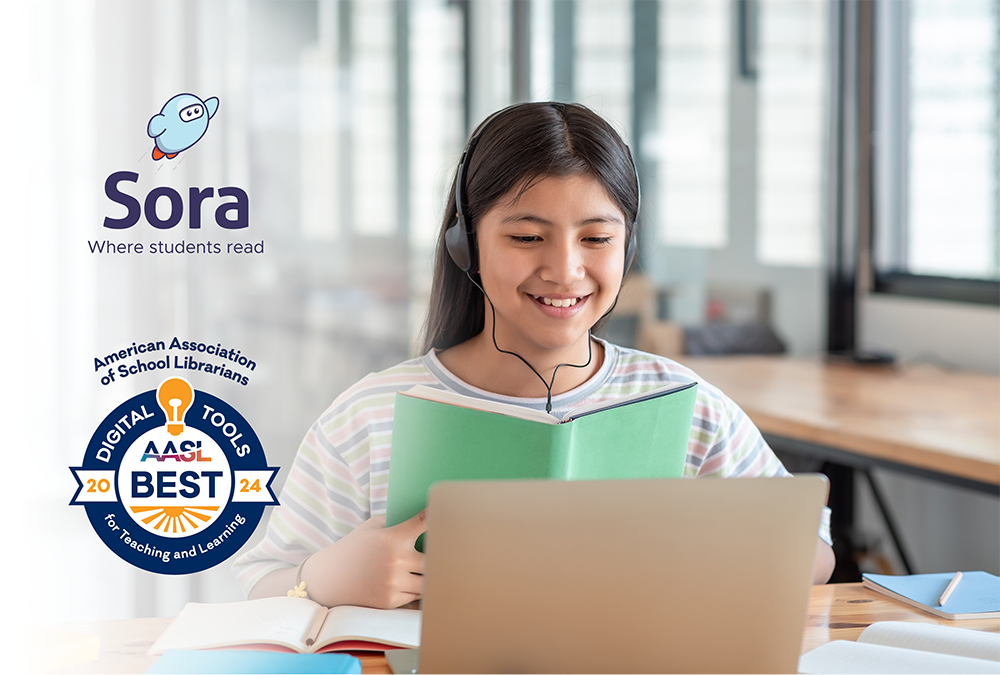
- Over-ear headphones are gentle for long sessions.
- Bone conduction headphones keep ears open to the world.
- Use mono audio if hearing is weaker on one side.
- Check volume limit settings on your phone.
For hearing health tips, see the NIH page on aging and hearing at https://www.nidcd.nih.gov/health/age-related-hearing-loss.
Sleep Timers and Night Routines
A calm voice can help you sleep. A timer stops the book before it runs too far. Pick a friendly story, not a tense one, at night.
- Set a 15–30 minute timer.
- Use a soft voice and slow speed.
- Switch to a low blue light theme on the screen.
Accessibility Boosters: Magnifiers, TTS, and More
Small changes make a big difference. Try a few and keep what works. These tweaks remove friction and bring joy back to reading.
Built-in Tools on iOS and iPadOS
Apple devices pack strong support. You can enlarge text across apps. You can have the screen read to you. You can turn on extra contrast and reduce motion.
- Settings > Accessibility:
- Display & Text Size: Larger Text, Bold Text, Increase Contrast
- Spoken Content: Speak Selection, Speak Screen, Highlight Content
- Zoom: Full screen or window zoom
- Per-App Settings: Make text larger only in reading apps
- Magnifier app: Turns the camera into a reading aid for menus or labels
Learn more from Apple’s guide: https://www.apple.com/accessibility/
Built-in Tools on Android
Android also offers strong help. Text can get very large. Colors can shift to reduce strain. You can select text and have it read out.
- Settings > Accessibility:
- Font size and Display size
- Color correction and inversion
- Magnification shortcut
- Select to Speak
- TalkBack (full screen reader)
See Android’s guide: https://support.google.com/accessibility/android
Standalone Apps for Read-Aloud and Focus
Some apps do TTS with rich voices. They also manage PDFs and scanned pages. They are great for longer documents.
- Voice Dream Reader
- Reads many formats
- Clear voices with fine controls
- Great for PDFs and Bookshare files
- Speechify and NaturalReader
- Easy to start
- Many voice choices
Tip:
- Try a few voices. A warm voice at slow speed is easy to follow.
Simple Physical Tools That Help
A few small items can boost comfort. Light, grip, and posture all matter. These tools are low-cost wins.
- Gooseneck lamp with warm LED bulb
- Non-slip grip pads on the back of the device
- Lightweight pillow stand for couch reading
- Large print bookmarks with contrast for paper books
How to Build a Reading Habit in Retirement
A habit is a small set of steps you repeat. Make it easy. Make it fun. Link it to time and place. Let the habit grow at its own pace.
Start Small: The Five-Minute Rule
Begin with a short read. Five minutes is enough. The point is to show up, not to push hard. Once you start, you may read more.
- Pick a quick win book you enjoy.
- Stop at five minutes if you like. Success builds strength.
- Add one minute each week if that feels right.
Set Clear Cues: Chair, Tea, Light
Use the same chair. Pour the same tea. Turn on the same warm lamp. These cues tell your brain it is time to read.
- Place your device and glasses by the chair.
- Keep a blanket nearby for comfort.
- Silence other devices to avoid pings.
Go Social: A Buddy or a Club
Pair up with a friend. Join a local or online club. Share notes and laughs. A social nudge keeps you coming back.
- Share quotes or highlights.
- Plan a weekly chat on the phone or video.
- For local club ideas, see your library or senior center.
- Explore our guide to starting a book club at /retirement-book-club-starter.
Reduce Friction: One-Tap Reading
Keep your current book in the dock. Make a big, clear icon. Set the app to open to the page you left off. Fewer steps, more joy.
- Use Widgets or Shortcuts to jump into your book.
- Turn on Auto-Lock delay so the screen stays on longer.
- Clear extra apps from your home screen to limit noise.
Track and Reward Your Streak
A simple log can spark pride. Check off each day you read. Treat yourself after a run of days.
- Use the app’s reading stats or a paper calendar.
- Set a small reward for 7, 14, and 30 days.
- Share your streak with a friend for cheer.
Blend Audio and Text
Use audiobooks when you cook, walk, or rest. Use e-books when you sit. This mix raises your total time with stories.
- Keep wireless earbuds on a charger near the door.
- Use the same title in text and audio when you can.
- Sync your place with Whispersync in Kindle or with Apple Books.
Read in the Gaps: Travel and Wait Times
Carry a book in your pocket at all times. Open it when you wait in line. Ten short moments can add up fast.
- Save articles to Pocket for five-minute reads.
- Set Libby to your home library plus a nearby library if allowed.
- Keep offline downloads ready for trips.
Library and Free Book Sources
Many great books are free with a card or with public domain sites. You can borrow from home. You can stream or download. You can also request large print.
Public Libraries via Libby and OverDrive
Your library card unlocks a huge digital shelf. Libby is the smooth way to borrow. Many systems also loan out e-readers.
- How it works:
- Add your card to Libby.
- Search by title, author, or subject.
- Borrow and start reading or listening.
- Tip:
- Use holds and tag lists to manage queues.
Learn more: https://www.overdrive.com/apps/libby
Project Gutenberg and Standard Ebooks
Classic works are free and legal to download. These sites offer clean text and good formats.
- Project Gutenberg: https://www.gutenberg.org
- Standard Ebooks: https://standardebooks.org
Tip:
- Standard Ebooks focuses on clean, modern formatting for better reading.
Open Library
Open Library lends scanned books to readers. It also has lists and suggestions.
- Browse: https://openlibrary.org
- Make a free account to borrow
- Check scan quality before you commit
Senior Centers and AARP Discounts
Your community center may host book swaps or tech help hours. AARP and other groups post deals on devices and content.
- AARP deals and tips: https://www.aarp.org
- Ask about device classes and e-reader demos
- Look for “Tech Tutors” or “Digital Literacy” sessions
Newspapers and Magazines
Apps make print news large and clear. They also let you zoom pictures and charts. You can adjust color and light.
- Apple News+ on iOS for many magazines
- PressReader for newspapers worldwide: https://www.pressreader.com
- Your library may offer free access to both
Safety, Privacy, and Payment Tips
Stay safe as you read and shop. Use strong passwords. Keep track of charges. Borrow when you can. Buy only what you need.
Passwords and Accounts
Accounts are keys to books. Guard them with care. Use unique passwords and a manager app.
- Use a password manager to store your logins.
- Turn on two-factor login for Amazon, Apple, and Google.
- Keep recovery info up to date.
Avoid Scams in Book Downloads
Only download from trusted stores and libraries. Be wary of pop-ups or “free” sites that ask for credit cards.
- Check the web address. It should be clear and known.
- If in doubt, call your library for help.
- Do not enter card data on strange sites.
Manage Subscriptions and Budgets
Subscriptions can creep. Review them each month. Keep the ones you love. Drop the rest.
- Track: Audible, Kindle Unlimited, Apple Books, Google Play, Scribd
- Put renew dates on your calendar.
- Ask for senior rates or library alternatives.
Data and Privacy in Reading Apps
Apps can track what you read. Decide what you are okay with. Adjust settings to limit data use.
- Turn off reading history sharing.
- Review “Privacy” pages on each app’s site.
- Use “Download only” when on public Wi-Fi.
Ergonomics and Eye Care
Small shifts in how you sit and hold a device can ease strain. Light matters. Breaks also help. Comfort first.
Posture, Stands, and Grips
Hold the screen at eye level or slightly below. Rest your arms. Keep the neck free. Use stands to avoid hunching.
- Use a pillow stand in bed.
- Try a clamp stand at a table.
- A ring grip can ease finger strain.
Light and Color Temperature
Bright white light wakes the brain. Warm light calms it. Switch based on time and need.
- Use warm light at night.
- Use higher brightness in the day to cut squinting.
- If glare is a problem, tilt the screen or add a matte film.
The 20-20-20 Rule and Breaks
Protect your eyes with breaks. Look away often. Blink more when screens are dry.
- Every 20 minutes, look 20 feet away for 20 seconds.
- Use dark mode if it feels good.
- Keep eye drops nearby if you need them. Ask your doctor if unsure.
Step-by-Step Setup Guides
A few setup steps can make reading smooth. Try these quick guides. You will be ready to read in minutes.
Set Up a Kindle Paperwhite for Large Print
A short setup makes text clear and bold. You can change it any time. Follow these steps to dial in your comfort.
- Tap Home > Settings > Device Options > Accessibility.
- Turn on Bold Text.
- Open a book, tap the top of the screen, and pick the “Aa” icon.
- Choose a font like Ember or Bookerly. Slide size to the right.
- Tap Layout and increase line spacing and margins.
- Go to Settings > Accessibility > VoiceView if you want a screen reader.
- In Settings > Device Options > Display, set Warmth to increase at night.
Set Up Libby With Your Library
Libby is fast to set up. You only need your card. Then you can borrow with a tap.
- Install Libby from your app store.
- Open it and choose “Yes” if you already use a card in another app.
- If not, search for your library by name or zip code.
- Enter your card number and PIN.
- Browse, borrow, and choose “Read With” to open in Libby or Kindle.
- Tap the sun/moon icon to choose themes.
- Tap “Aa” in the reader to set font, size, and spacing.
Turn On Speak Screen on iPhone or iPad
Speak Screen reads what you see on the screen. It helps when eyes tire. It is easy to start and stop.
- Open Settings > Accessibility > Spoken Content.
- Turn on Speak Screen and Speak Selection.
- Turn on Highlight Content.
- In a book or web page, swipe down with two fingers from the top to start.
- Use the on-screen controller to pause or change speed.
Enable Select to Speak on Android
Android can read text out loud on demand. You can also manage voice speed and pitch.
- Open Settings > Accessibility > Select to Speak.
- Turn it on and confirm permissions.
- Tap the Select to Speak icon on the screen.
- Tap text or drag to select a paragraph.
- Use the controls to pause or change speed.
Budget Picks and Value Bundles
You can build a great setup at any budget. Mix free apps with low-cost gear. Libraries fill the gaps. Here are sample kits.
Under $50 Setup
This kit uses what you may already own. It adds comfort at a low cost. It is a strong start.
- Your smartphone
- Free apps: Libby, Kindle, Pocket
- A pillow stand or ring grip
- A warm LED bulb for a lamp
- Public library card
Result:
- Large text with low cost
- Audiobooks for walks
- Clean reading for web articles
Under $150 Setup
This kit upgrades comfort and size. It is a good balance for daily reading.
- Amazon Fire HD 8 or 10 on sale
- Folio stand case
- Libby and Kindle apps
- Matte screen protector
Result:
- Bigger screen and hands-free angles
- Easy library loans
- Warm light and long battery life
Comfort-First Premium Setup
This kit aims for peak ease. It is best if you read daily or have sensitive eyes.
- Kindle Paperwhite or Kobo Clara 2E for long book sessions
- iPad mini or Samsung Tab for color and magazines
- Over-ear headphones for audiobooks
- Gooseneck lamp with warm LEDs
Result:
- Paper-like comfort plus color when you need it
- Smooth audio and strong battery life
- Flexible for every type of content
Troubleshooting Common Problems
Small snags can stop a reading streak. Fix them fast with these moves. Keep calm and try one step at a time.
I Cannot Download a Book
This can be a link, Wi‑Fi, or account issue. Start simple. Then go deeper.
- Check Wi‑Fi or data is on.
- Restart the app and device.
- Sign out and sign back in to the app.
- On Libby, check if you linked the right card.
- Clear app cache on Android if needed.
- Ask your library to reset your PIN if you forgot it.
The Text Is Too Small or Too Light
Go to the app’s text menu. Make the text larger and bolder. Adjust spacing and margin.
- Enable Bold Text in system settings if available.
- Try a font with strong shapes, like Atkinson Hyperlegible.
- Increase line spacing and pick a warm theme.
- On tablets, use landscape mode to increase width.
My Eyes Get Tired Fast
Use an e-ink device if you can. Or use warm light and dark mode on a tablet. Add more breaks.
- Try 20-20-20 every 20 minutes.
- Lower brightness in dim rooms.
- Use night mode or sepia in the evening.
- Switch to audiobooks to rest eyes.
I Forget What I Read
Notes and highlights help. So do quick reviews. Share a point with a friend to lock it in.
- Highlight key lines and add a short note.
- Review highlights once a week in Readwise or the app’s notes view.
- Say one key idea out loud after each session.
Real-Life Routines: Three Senior Profiles
Each person reads in their own way. See which one feels like you. Steal a tip that fits your day.
The Walker Who Loves Stories
They walk each morning. They listen as they move. This habit is calm and steady.
- Device: Smartphone in a waist pack
- App: Libby or Audible with a sleep timer
- Gear: Bone conduction headphones for open ears
- Tip: Start slow and raise the speed by 0.1x each week
The History Lover With Gentle Eyes
They love long reads but need soft light. E-ink is their friend. Large print keeps the flow smooth.
- Device: Kindle Paperwhite or Kobo Clara 2E
- Setup: Large bold font, wide spacing, warm light
- Routine: 30 minutes after lunch in a favorite chair
- Tip: Use a pillow stand to rest the arms
The Mentor Who Reads With Grandkids
They share books by voice and video. They mark quotes and discuss. It brings the family close.
- Device: iPad or Samsung Tab for picture books
- App: Kindle or Apple Books with Family Sharing
- Routine: Weekly video call story time
- Tip: Use a stylus to point and circle pictures on screen
Internal Resources and Further Reading
These guides build on your reading life. They are short and clear. Each one has steps you can try today.
- A simple routine for daily focus: /retirement-morning-routine
- How to choose an e-reader vs. a tablet: /choose-ereader-tablet
- Get more from your library card: /library-digital-how-to
- Tech basics for seniors: /senior-tech-setup
- Better sleep with screens: /sleep-and-screens-seniors
- Join or start a book club: /retirement-book-club-starter
- Accessibility tools that work: /assistive-technology-guide
FAQs
What is the best device for seniors with sensitive eyes?
An e-ink reader like Kindle Paperwhite or Kobo Clara 2E is a strong pick. The screen looks like paper. It has low glare and warm light. It supports large fonts and bold text.
Which is easier: Kindle or Kobo?
Both are easy. Kindle has a bigger store in the US and tight links to Amazon. Kobo reads more file types and has OverDrive built in. If you want deep library use, Kobo is great. If you shop on Amazon, Kindle is simple.
Are audiobooks as good as reading?
Yes, for most goals. Your brain gets the same story and ideas. Audiobooks are easier on the eyes. They are great when you walk, cook, or rest.
How do I get free e-books legally?
Use your public library with Libby. Try Project Gutenberg and Standard Ebooks for classics. Open Library also lends many titles. Check your library for free access to newspapers and magazines.
What font size should I pick?
Pick what feels good today. Many readers like sizes in the top one-third of the slider. Increase spacing and margins too. Bold weight can add comfort.
How do I protect my data in reading apps?
Use strong passwords and two-factor sign-in. Turn off data sharing in app settings. Buy only from known stores. Review your subscriptions each month.
Can I share books with family?
Yes, on many platforms. Amazon has Household sharing. Apple has Family Sharing. Ask your family to help set it up. You can share some purchases across devices.
How do I keep a habit going?
Start small. Read daily at a set time and place. Join a club or buddy up. Track your streak and celebrate wins. Make it easy and fun.
Conclusion
The best digital reading tools for seniors are the ones you enjoy using each day. E-ink readers are gentle on the eyes. Tablets handle color and many apps. Audiobooks keep stories close when your hands are busy. Choose large text, warm light, and simple controls. Lean on your library for free books. Use voice tools and magnifiers when you need them. Build your habit with small steps, clear cues, and a friendly routine. Your reading life can be rich, calm, and full of delight in retirement. You have the tools. Now it is time to turn the page and begin.

Michael Reynolds is a senior contributor at RetirementGazette.com, where he focuses on helping readers navigate the journey toward a secure and fulfilling retirement. With over a decade of experience in personal finance, retirement planning, and lifestyle writing, Michael combines practical strategies with easy-to-understand guidance tailored for both pre-retirees and those already enjoying their golden years.