Reading can be a steady light in retirement. It can lift mood, spark ideas, and keep the mind sharp. Today, you can read in many simple ways. Digital tools make it easy to build a daily habit that fits your life. This guide shows you how to choose the right tools, set simple goals, and enjoy words every day. It is clear, practical, and built for comfort. It is also rich with retirement lifestyle tips that work.

Why Digital Reading Tools Matter in Retirement
Digital reading tools for seniors remove many old hurdles. You can change text size with a tap. You can listen when eyes feel tired. You can borrow eBooks from your library at home. This opens a calm path to learn, relax, and grow each day.
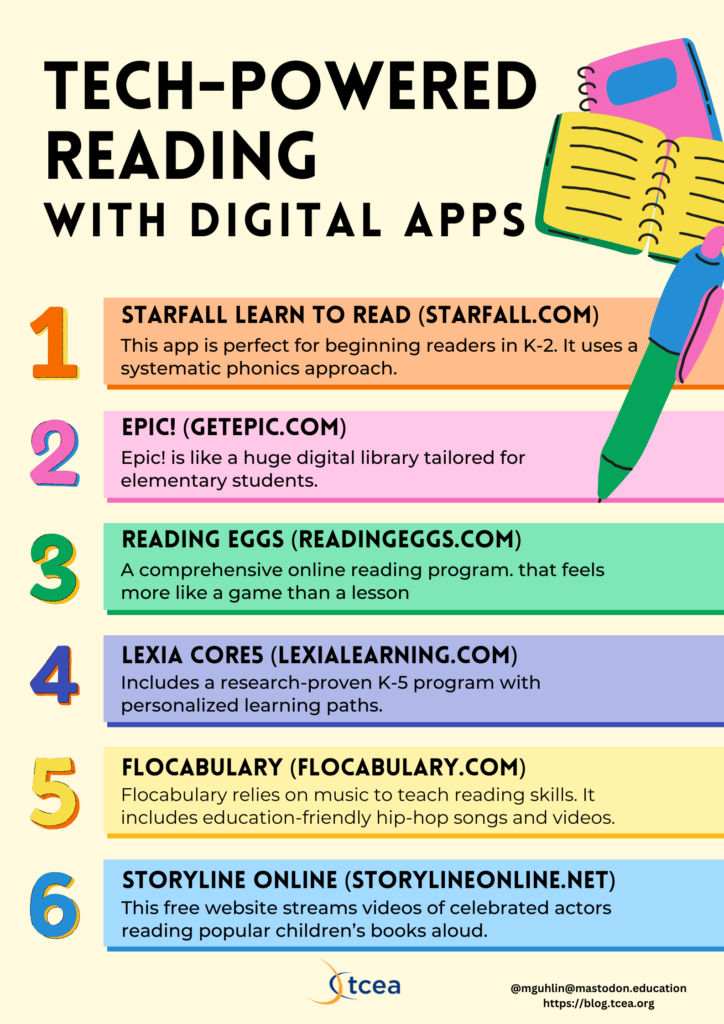
Digital reading also helps you keep a steady routine. It takes less effort to carry a device than a stack of books. It is fast to start and stop. That helps you form a habit that lasts.

Many seniors find new joy in books through audio. A calm voice reading a story can ease stress. It can help you fall asleep. It can also bring back the spark for novels, poems, or history.
What Counts as a Digital Reading Tool?
A digital reading tool is any device or app that helps you read or listen. It can be an eReader, a tablet, a phone, or a smart speaker. It can be a library app or a book store app. It can also be a voice app that reads web pages out loud.

Here are the main types:
- eReaders like Kindle and Kobo for simple, glare-free reading
- Tablets like iPad for flexible use and large screens
- Phones for quick reads on the go
- Audiobook apps for hands-free listening
- Library apps for free eBooks and audiobooks
- Read-aloud tools that speak text on web pages or PDFs
Key Benefits for Seniors
Digital reading tools for seniors come with many gains. Most tools have font, color, and light controls. Many have built-in dictionaries. Some sync notes and bookmarks across devices. There is also fast search. You can find a word, a name, or a quote in a tap.

They also help with comfort and wellness:
- Larger text and high contrast modes reduce eye strain
- Dark mode helps at night
- Light weight devices are easy to hold
- Audiobooks let you rest your eyes
- Voice commands make hands-free control simple
- Sync means you can switch between reading and listening
Features That Matter: A Senior-Friendly Checklist
When you shop or pick an app, use this simple list. It will help you find the right fit and avoid stress. Start with comfort. Then look for safe tools and easy support.
Top features to look for:
- Text control: font size, style, spacing, and line height
- Contrast and color themes: light, dark, sepia, custom palettes
- Lighting: front light or backlight with warm tone
- Dictionary and quick lookup for words and facts
- Read-aloud or text-to-speech (TTS) with clear voices
- Voice commands and dictation
- Simple menus with large icons
- Bookmarks, notes, and highlights with easy export
- Sync across phone, tablet, and reader
- Library access and borrowing tools
- Offline reading and downloads
- Long battery life and fast charge
- Strong privacy settings
Accessibility tips:
- Try bold and high-contrast fonts (like OpenDyslexic or “Bold” options)
- Increase margin and line spacing to reduce crowding
- Use a warm light at night to limit blue light
- If hands shake, try page turns by tap zones or auto-scroll
- If you need large touch targets, set your device to “Display Zoom” or “Large View”
- If you have hearing aids, check Bluetooth support for audiobooks
Devices at a Glance: Pros and Cons
Pick the path that feels easy. Each device has strengths. The best one is the one you enjoy each day.
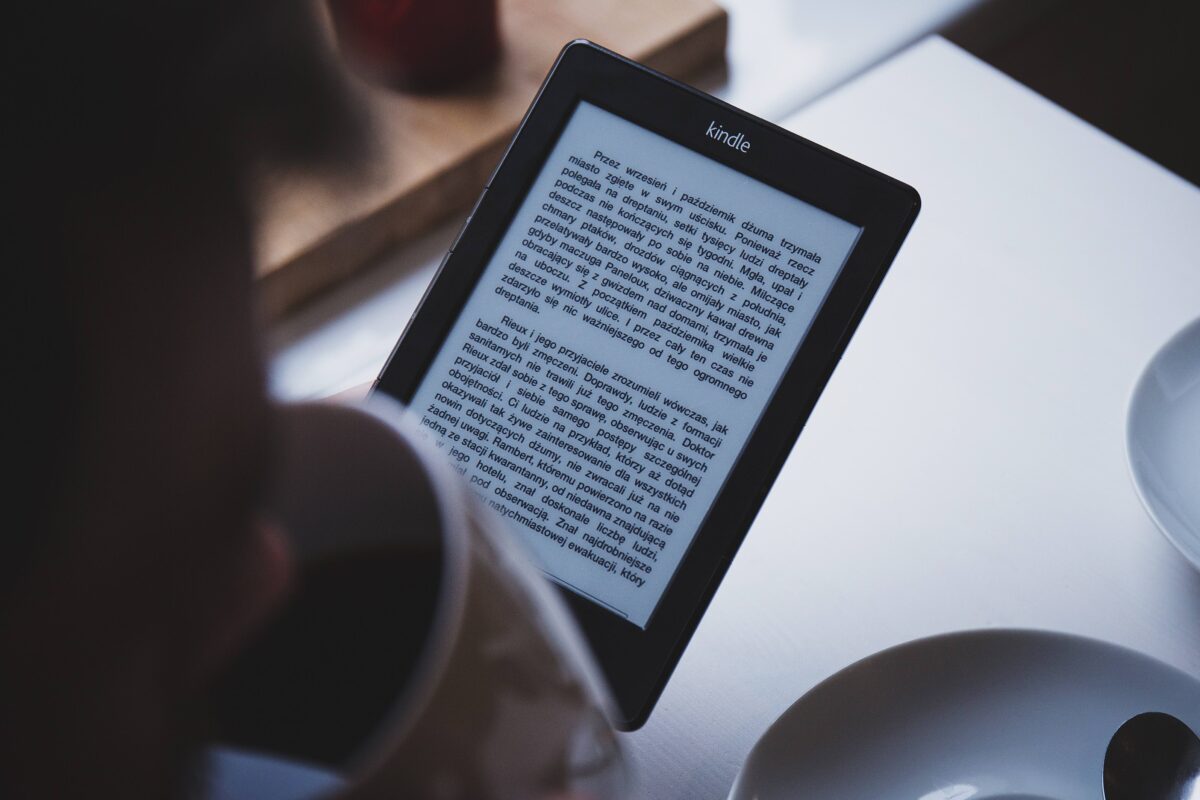
eReaders (Kindle, Kobo)
eReaders use e-ink screens. They look like paper and have no glare. They are light and have long battery life. Many models are waterproof and have warm light. They make long reading sessions gentle on the eyes.
Pros:
- Very light and simple
- Paper-like screen, great in sun
- Battery can last weeks
- Few alerts and less stress
Cons:
- Best for eBooks only
- Web and apps are limited
- Smaller screens than tablets
Best for:
- Book lovers who want a calm, focused tool
- Anyone with eye strain from bright screens
Tablets (iPad, Android tablets)
Tablets do many things well. They have large screens, sharp text, and bright colors. They support many book apps and library tools. You can also watch videos and make video calls.
Pros:
- Large screens and flexible apps
- Strong support for accessibility
- Great for magazines and PDFs
- Easy to read in bed or on a stand
Cons:
- Heavier than eReaders
- Bright screens can tire eyes
- Battery lasts a day or two, not weeks
Best for:
- Mixed reading and viewing
- Magazines, cookbooks, and visual content
Smartphones
Phones are always with you. That makes it easy to read or listen in short bursts. Most reading apps have solid phone support. You can also use voice commands and earbuds.
Pros:
- Always on hand
- Quick sessions on the go
- Good for audiobooks and TTS
- Adjustable text and contrast
Cons:
- Small screen
- More alerts and distractions
- Battery drain if used a lot
Best for:
- Short daily reads
- People who like to listen while walking
Smart Speakers and Smart Displays
Smart speakers and displays read news or books out loud. You can use simple voice commands. Displays can show large text and act as a bedside guide.
Pros:
- Hands-free control
- Great for tasks and reminders
- Good for short news or articles
Cons:
- Not good for long text reading
- Voice quality varies
- Needs Wi-Fi
Best for:
- Quick info, headlines, brief reads
- People who like voice help in the home
Top Apps and Services Seniors Love
Pick one or two apps to start. Keep it simple. As you build your habit, add more if you like.
Kindle
Kindle runs on eReaders, tablets, and phones. It has huge book choices and many font tools. It also has text-to-speech in some apps, X-Ray for story notes, and sync across devices.
Good for:
- Big book store, simple buy
- Sync across phone and tablet
- Large print and bold font modes
Learn more: Kindle
Internal read: eReader Buying Guide
Kobo
Kobo eReaders and apps support many formats. They are known for wide library support and strong font options. The OverDrive feature on some models links to your library.
Good for:
- Library fans
- Open formats (ePub)
- Clean font and layout controls
Learn more: Kobo eReaders
Apple Books
Apple Books is built into iPhone and iPad. It is simple, clean, and friendly. It supports large text, high contrast, and read-aloud. You can buy, sample, and organize with ease.
Good for:
- Apple users who want less fuss
- Strong VoiceOver and Zoom support
- Good for PDFs and magazines
Learn more: Apple Accessibility
Google Play Books
Play Books works on Android and the web. It has good font control, night light, and upload for your own PDFs. It can sync notes across devices.
Good for:
- Android users
- Uploading your own files
- Simple TTS support
Learn more: Android Accessibility
Libby (by OverDrive)
Libby is a library app. It lets you borrow eBooks and audiobooks for free with your card. It is easy to use and has strong search and filters.
Good for:
- Free reading and listening
- Holds, tags, and wish lists
- Send to Kindle feature for many books
Learn more: Libby
Internal read: Library Apps Resource
Hoopla
Hoopla is another library app. It offers eBooks, audiobooks, comics, movies, and music. You can borrow without holds on many items.
Good for:
- Instant access, no wait on many titles
- Comics and media
- Easy app layout
Learn more: Hoopla Digital
Audible and Chirp
Audible is a large audiobook store. It has many exclusive titles and podcasts. Chirp offers limited-time deals with no subscription.
Good for:
- Audiobook lovers
- Sleep timers and playback speed control
- Easy to add long books to your life
Internal read: Audiobooks vs. eBooks
Project Gutenberg
Project Gutenberg offers free public domain books. It has classics, poetry, and more. You can download in many formats.
Good for:
- Classic literature
- Free and open texts
- Reading in any app
Learn more: Project Gutenberg
Bookshare (for print disabilities)
Bookshare is for people with reading barriers. This includes low vision and dyslexia. It offers a large library with many assistive tools. A qualified professional must verify eligibility.
Good for:
- Custom fonts and layouts
- Audio with synchronized text
- Large library of accessible books
Learn more: Bookshare
NLS BARD (for eligible U.S. readers)
The National Library Service offers BARD. It gives free access to braille and audio books for those who qualify. Many seniors with vision loss can use it.
Good for:
- Free, high-quality audio
- Specialized devices and apps
- Support for low vision
Learn more: NLS BARD
Read-It-Later Apps: Pocket and Instapaper
These apps save web pages to read later. They strip ads and show clean text. They also add TTS to articles.
Good for:
- Saving recipes, news, essays
- Offline reading
- Read-aloud for web content
Learn more: Pocket and Instapaper
Read-Aloud Tools: Voice Dream Reader and More
Voice Dream Reader and similar apps read many file types out loud. You can adjust voice speed and tone. You can also highlight text as it speaks.
Good for:
- Tired eyes or eye strain days
- Long articles and PDFs
- Custom voices and bookmarks
Learn more: Voice Dream
How to Build a Reading Habit After 60
A habit feels like a path you can walk with ease. Start small. Be kind to yourself. Tie your reading time to a cue you do each day. It can be tea time or a short walk.
Use this simple plan:
- Pick a tiny goal: five minutes each day
- Set a cue: after breakfast, before a nap, or at sunset
- Choose one device and one app to start
- Prepare the space: good light, a stand or pillow, and glasses
- Use large text that feels calm on your eyes
- Place the device where you can see it, like the armchair or nightstand
- Track your streak to see progress
- Reward yourself with a small treat or a new genre
Add habit anchors:
- Pair reading with a sound cue, like soft music
- Pair audiobooks with a daily walk or stretching
- Pair an evening chapter with your herbal tea
Strengthen the loop:
- Keep the last book open on your screen
- Use bookmarks and highlight favorite lines
- Write a one-line note after each session, like “I liked this scene”
- Join a simple book club with friends or family
Plan for tough days:
- Switch to audio on days when eyes feel tired
- Read one page only, to keep the chain
- Choose a lighter book when focus is low
- Use a sleep timer to avoid late-night strain
Accessibility Tips That Make Reading Easier
Accessibility turns a hard path into a smooth one. Set your tools to match your needs. Small tweaks can remove stress and bring joy back to words.
For Vision Comfort
Many seniors have dry eyes or cataracts. A bright backlit screen can feel harsh. Use an e-ink reader or a warm light on a tablet. Increase font size and spacing.
Try these:
- Increase text to a larger size you can read at arm’s length
- Use high contrast theme (light text on dark or black on ivory)
- Pick a font made for clarity (Bookerly, Georgia, or OpenDyslexic)
- Raise line spacing and margins to reduce crowding
- Use built-in magnifier on phones for labels and menus
- Turn on “Reduce White Point” or “True Tone” on iPad
Learn more about eye health: National Eye Institute
For Hearing and Audiobooks
Audiobooks can fit hearing aids and bone conduction headsets. Use Bluetooth if you can. Adjust speed and tone to suit your ear.
Tips:
- Connect hearing aids to your phone or tablet via Bluetooth
- Use mono audio if you hear better in one ear
- Slow the speed for rich accents or complex plots
- Set a sleep timer at night
For Hands and Joints
If joints ache, choose light devices. Use stands or pillow mounts. Set large tap zones for page turns. Try voice commands.
Tips:
- Use ring grips, cases with stands, or go hands-free with a mount
- Enable “AssistiveTouch” on iOS or “Accessibility Menu” on Android
- Assign volume buttons to turn pages if your app supports it
- Ask a voice assistant to start your book
For Focus and Memory
Short chapters help. So do bookmarks and notes. Use text-to-speech to follow along with the text. That can boost recall.
Tips:
- Read in 10–15 minute blocks with breaks
- Use highlight colors for people, places, ideas
- Summarize in one or two lines after each session
- Use the same chair and time of day to anchor your mind
A Simple Buying Guide: Spend Smart, Read More
You do not need the newest device. You need a tool that feels calm and clear. Focus on comfort and ease first. Do not overbuy features you will not use.
New vs. Refurbished
Refurbished devices can save money. They come with a warranty from good sellers. Many feel like new.
- Pick certified refurbished from the maker when you can
- Check return policy and battery health terms
- Test at home during the return window
Library vs. Store
Mix free and paid books. Libraries offer eBooks and audiobooks at no cost. Stores offer instant access and deals.
- Get a free library card and install Libby or Hoopla
- Use wish lists for deals on store apps
- Keep a “To Read” list in one place
Subscription Plans
Some plans charge a monthly fee. They can be a good value if you read or listen a lot. Track your use for a month.
- Try a free trial for Audible or Kindle Unlimited
- Cancel if you use it less than you thought
- Use Chirp for deals without a plan
Internal read: Reading Habits for Seniors
Privacy and Security for Peace of Mind
Your reading life is personal. Use basic safety steps with any device. Keep your info safe.
- Use a strong passcode on all devices
- Turn on auto updates
- Do not share your library login
- Use official app stores only
- Check app privacy settings
- Avoid free apps from unknown brands
Learn more: FTC App Privacy Tips
Troubleshooting: Quick Fixes to Common Issues
A small snag should not stop your habit. Here are fast fixes to keep you reading.
- Text too small: increase font size and line spacing
- Glare: use matte screen or an e-ink reader
- Eyes feel dry: blink breaks, night mode, or switch to audio
- Battery low: use low power mode or dim the light
- Confusing menu: switch to “Simple Mode” or “Large View” in settings
- Slow downloads: connect to Wi-Fi and pause background apps
- Book not opening: restart the app or device, then re-download
If you need help:
- Call your library’s digital help desk
- Ask a family member to set up your first few books
- Check the support pages of your device maker
Helpful links:
- Apple Support Accessibility
- Android Accessibility Help
- Kindle Support
- Kobo Help
- OverDrive/Libby Help
Social Reading: Stay Connected and Motivated
Reading can be private and still be shared. A short talk about a book can make your day. It can also keep your habit strong.
Ideas to try:
- Join a small online club on Zoom or by phone
- Start a family book chat in a messaging app
- Use shared highlights in Kindle to spark talk
- Post a one-line review each week for friends
Use social tools with care:
- Keep groups small and kind
- Avoid spoilers and heavy rules
- Share quotes that inspire joy
A 7-Day Starter Plan for Your Reading Habit
This plan is gentle. It builds one small win at a time. Follow it once. Then repeat it with new books.
- Day 1: Set up your device. Pick a font and size that feels easy. Save your library logins. Download one eBook and one audiobook.
- Day 2: Read for five minutes after breakfast. Add one note or a highlight. Set a “Reading” reminder at the same time tomorrow.
- Day 3: Take a 10-minute walk and listen to your audiobook. Try 0.9x or 1.0x speed.
- Day 4: Read a short story or one chapter at sunset. Turn on warm light. Try dark mode.
- Day 5: Save one web article to Pocket or Instapaper. Use read-aloud. Set a 15-minute timer.
- Day 6: Join a library waitlist for two books. Add them to your wish list. Share one quote with a friend.
- Day 7: Review your week. Which time felt best? Lock that time in for next week. Reward yourself with a new genre or author.
Pro tip:
- Keep your device in your “reading chair”
- Keep glasses and a small light nearby
- Use a stand to read hands-free with tea
Reading Genres that Fit a Retirement Lifestyle
Pick books that match your energy each day. Let mood guide your choice. Light, calm, deep, or bold—all are fine.
Ideas:
- Gentle fiction with cozy plots
- Memoirs and travel tales
- Nature and garden books with photos (use a tablet)
- History with short chapters
- Poetry for short, rich moments
- How-to guides and crafts
- Brain puzzles and short essays
Mix formats:
- Use eBooks for daytime reading
- Switch to audio in late evening
- Use large print and soft light
Ergonomics: Set Up a Cozy Reading Space
Make your chair a small haven. Set the light and posture so you can read longer with less strain. A few small tweaks can help a lot.
Tips:
- Sit with back support and a pillow under your arms
- Keep the screen just below eye level
- Use a warm lamp behind your shoulder
- Take a two-minute break each 20 minutes to blink and stretch
- Try blue-light filters in the evening
- Keep water nearby to ease dry eyes
Case Studies: Three Senior-Friendly Setups
Real stories can guide your choices. Here are three simple paths that work well.
Nora, 72, Avid Reader with Mild Dry Eye
Nora loved thick paperbacks but her eyes grew tired. She picked a Kindle with warm light. She set a large font and wide spacing. She now reads an hour at noon and listens at night. She says the new habit feels soft and kind.
Her tools:
- Kindle Paperwhite with warm light
- Libby for free library books
- Audible for long sagas
- A clip-on stand and a cozy lamp
James, 68, Walks Daily and Loves History
James wanted books for his walks. He uses a phone with a simple earbud. He listens at a slow pace. At home, he reads short summaries to lock in facts.
His tools:
- iPhone with Apple Books and Audible
- Pocket for articles
- 15-minute audiobook walk at 4 p.m.
- One-line summary note after each session
Maria, 76, Arthritis and Limited Vision
Maria wanted large text and no glare. She chose an e-ink Kobo and a tablet with a big screen for magazines. She uses BARD for free audio. She reads in a recliner with a tablet stand.
Her tools:
- Kobo eReader with big font and heavy line spacing
- iPad with dark mode and True Tone
- NLS BARD for audiobooks
- A floor lamp with a warm bulb and remote switch
Budget-Friendly Tips and Free Resources
You can read well on a small budget. Use your library. Use free classic books. Watch for deals.
- Get a library card for Libby and Hoopla
- Use Project Gutenberg for classics
- Watch Chirp for discount audiobooks
- Try device trade-ins or certified refurbished
- Borrow devices from family to test what you like
- Subscribe to our newsletter for deal alerts
Internal link: Subscribe for Reading Deals
External links:
Digital Reading Routines That Fit a Retirement Lifestyle
Design a day that suits your energy. Reading can be your morning warm-up or your evening wind-down. It can be the thread that ties your hours.
Sample routines:
- Morning Sun: Ten minutes with coffee. One chapter in large print. A note in your reading log.
- Afternoon Calm: A walk with an audiobook. Stretch. Drink water.
- Evening Wind-Down: A poem in dark mode. A sleep timer at 20 minutes.
Near bedtime:
- Use a warm screen tone
- Switch to audio if eyes feel dry
- Keep the room dim and cool
- Pause at a calm scene for good sleep
Make It Stick: Motivation and Mindset
Think of reading as a garden you tend each day. Some days bloom; some days rest. Keep the chain. Keep the joy.
- Keep goals small and gentle
- Celebrate streaks, not speed
- Share small wins with a friend
- Forgive skips and start again the next day
- Try new genres to keep it fresh
Behavior tips:
- Use “if-then” plans: “If it is 8 p.m., then I read for 10 minutes”
- Place bright icons for reading apps on your home screen
- Turn off alerts during reading time
Printing, Notes, and Memory Aids
Notes can make memories last. Keep them short. Keep them in one place.
- Use highlights and export them as a file
- Print a weekly “favorite quotes” page
- Summarize each book with three lines: plot, idea, feeling
- Share notes with a friend to spark a talk
- Use tags like “calm,” “learn,” or “travel” to sort books
Safety, Care, and Support
Treat your devices like glasses. Clean them, charge them, and keep them near. Support is easy to find if you know where to look.
Care tips:
- Use a case with a stand or grip
- Wipe screens with a soft cloth
- Charge at the same time each day
- Label cables and chargers
Support:
- Ask your library for digital help hours
- Visit a local senior center tech class
- Use the company’s chat support
- Ask family or friends to help set up the first time
Internal and External Resources You Can Trust
Use trusted guides to make choices and get help. A few strong links can save time.
Internal links:
- Reading Habits for Seniors: /blog/reading-habits-for-seniors
- eReader Buying Guide: /guides/ereader-buying-guide
- Audiobooks vs. eBooks: /blog/audiobooks-vs-ebooks
- Library Apps Resource: /resources/library-apps
- Subscribe for Reading Deals: /newsletter/subscribe
External links:
- Libby by OverDrive: https://www.overdrive.com/apps/libby
- Hoopla Digital: https://www.hoopladigital.com/
- Project Gutenberg: https://www.gutenberg.org/
- Bookshare (eligibility required): https://www.bookshare.org/
- NLS BARD Info: https://www.loc.gov/nls/resources/braille-audio-reading-materials/bard-access/
- Apple Accessibility: https://www.apple.com/accessibility/
- Android Accessibility: https://support.google.com/accessibility/android
- National Eye Institute: https://www.nei.nih.gov/learn-about-eye-health
- AARP Tech Guides: https://www.aarp.org/home-family/personal-technology/
FAQ: Digital Reading Tools for Seniors
Q: Are eReaders better for seniors than tablets?
A: It depends on your needs. eReaders are light, glare-free, and last weeks on a charge. They feel like paper and are kind to the eyes. Tablets have bright screens and do many jobs well, but they can tire eyes and need daily charging.
Q: What is the easiest reading app for seniors?
A: Many like Libby for library books and Kindle or Apple Books for store books. They are simple and stable. Try one app first and keep it for a month.
Q: Can I make the text very large?
A: Yes. All major apps offer large text and bold fonts. You can also increase line spacing and margins for comfort.
Q: How can I read for free?
A: Use library apps like Libby and Hoopla. You can also read classics with Project Gutenberg. Most public libraries now lend both eBooks and audiobooks.
Q: What if my eyes are tired?
A: Switch to audiobooks or turn on text-to-speech. Use a warm light and large text. Take a short eye break after each 20 minutes.
Q: Are audiobooks “real reading”?
A: Yes. You still gain ideas and stories. Audiobooks are great for mood and focus. Many seniors enjoy them on walks or before sleep.
Q: Is it safe to buy books online?
A: Yes, if you use official apps and stores. Keep your device and apps updated. Use strong passcodes and do not share your logins.
Q: Can I use my hearing aids with audiobook apps?
A: Many hearing aids work with Bluetooth. Pair them to your phone or tablet. Adjust mono audio and volume in settings.
Q: How do I stop screen glare?
A: Use an e-ink reader or switch to dark mode on a tablet. Add a matte screen protector. Read with a soft lamp behind you.
Q: How do I keep my habit going?
A: Set a five-minute goal tied to a cue like tea time. Keep your device where you can see it. Track streaks and share wins with a friend.
Conclusion
Digital reading tools for seniors can turn reading into a daily joy. They remove hurdles like small print, heavy books, and glare. With the right device, the right app, and a kind habit plan, you can read or listen each day with ease. Start small. Make it cozy. Let stories and ideas light your retirement hours.

Michael Reynolds is a senior contributor at RetirementGazette.com, where he focuses on helping readers navigate the journey toward a secure and fulfilling retirement. With over a decade of experience in personal finance, retirement planning, and lifestyle writing, Michael combines practical strategies with easy-to-understand guidance tailored for both pre-retirees and those already enjoying their golden years.